| Bookmark Name | Actions |
|---|
App Landing Page
Implementing one of the best practices of eCommerce, the Infinity Onboarding app provides you the ability to navigate between the available products and their details. The app enables you to select a product for which you want to open an account. Currently, you can select only one product at a time.
At the start of the Infinity Onboarding app, the Landing Dashboard opens. The Infinity Onboarding app comprises the following three layers:
The Landing Page is a dynamic module, and its data is retrieved from the Marketing Catalog Microservice (MCMS). If the data in the MCMS changes, the app landing dashboard will also change dynamically, and in the run-time.
For more information about the Marketing Catalog microservice, click here.
In case of multi-entity organizations, banks can have multiple implementations across its various branches or across different geographies.
Similarly, Infinity Onboarding can host data of multiple entities. The core system contains multiple branches for various entities. For example, a bank Z contains three branches in the cities: A, B, C. Each branch can offer a different set of products. Depending on which branch you want to open an account in, a unique set of products are displayed in the Onboarding dashboard.
When the app is launched, the landing dashboard displays a set of products based on the default branch. The flow of the application varies depending on the type of the user.
In case of a new user, the set of products displayed on the dashboard depends on the following:
- Spotlight Configurations: When the app is launched, the default Branch id is retrieved from the Configurations set in Spotlight. Then, the products available for the default branch are retrieved from the Marketing Catalog MS and are displayed on the dashboard.
- Identity Scope of user: The Branch Id can also be manually included in the app URL. Upon launching the app, the products available for the branch id that is present in the URL, are displayed. For example, the deep link URL used for the Onboarding app, BSG company is:
https://dbxlendingdev.konycloud.com/apps/Onboarding/#_frmStartup?BranchRef=NL0020001&Identifier=AutoBranch
Here, the value of the BranchRef parameter is a unique identifier of the respective branch in the core system.
NOTE: When the app is launched, if the branch Id is already added as a branch reference in the deep link URL, then the default configuration in Spotlight is overridden. The products offered by the branch that is referenced in the deep link URL are displayed and a prospect customer is created in the core.
In case of an existing user, the set of products displayed on the dashboard depends on the identity scope of user. When the app is launched, if the app URL contains a branch reference, the products offered by that branch are displayed on the dashboard. Otherwise, the products offered by the default branch reference are displayed. However, once you login, if the Branch Id associated to your user profile is different from the branch Id in the deep link URL, then you are navigated to the dashboard and a new set of products are displayed, based on the associated branch Id.
Furthermore, when you resume an application, the branch reference is retrieved in the login response and the section that you last visited appears. If you are a new user, the branch reference is retrieved after you login with your temporary password. If you are an existing user, the branch reference is retrieved during the actual login.
Landing Dashboard
Landing Dashboard summarizes the available product groups to open a new account or resume an application.
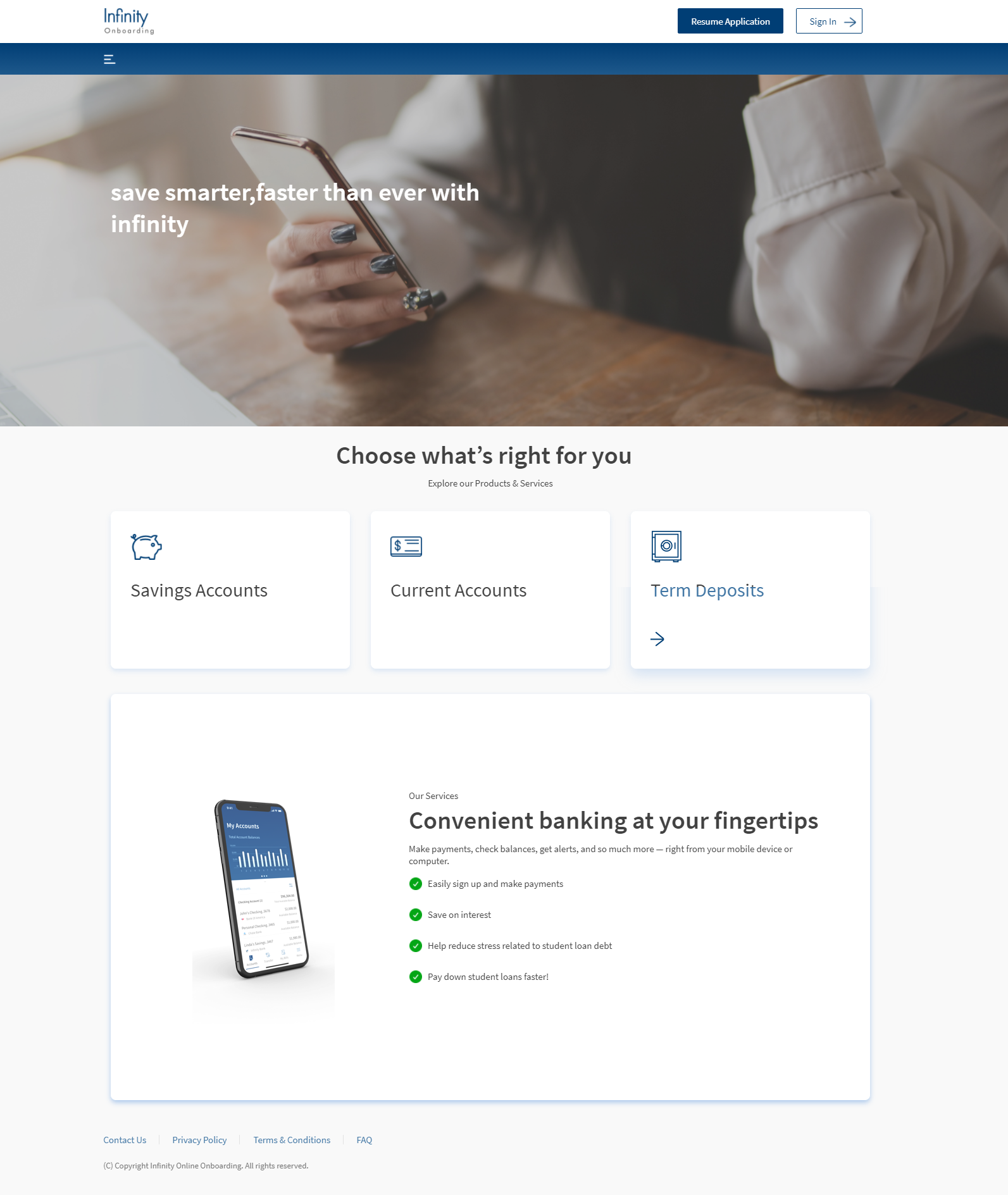
The dashboard can display product groups such as:
- Savings Accounts
- Current Accounts
- Term Deposits
To explore the products available in each product group, click on the respective account type. If a product group contains more than one product, the Product Group Dashboard appears. Otherwise, the Product Details Dashboard appears.
Product Group Dashboard
The Product Group Dashboard contains the list of the available products in the selected product group.
For example, the Savings Accounts' product group contains the following products:
- Standard Savings Account
- Prime Savings Account
- Salary Savings Account
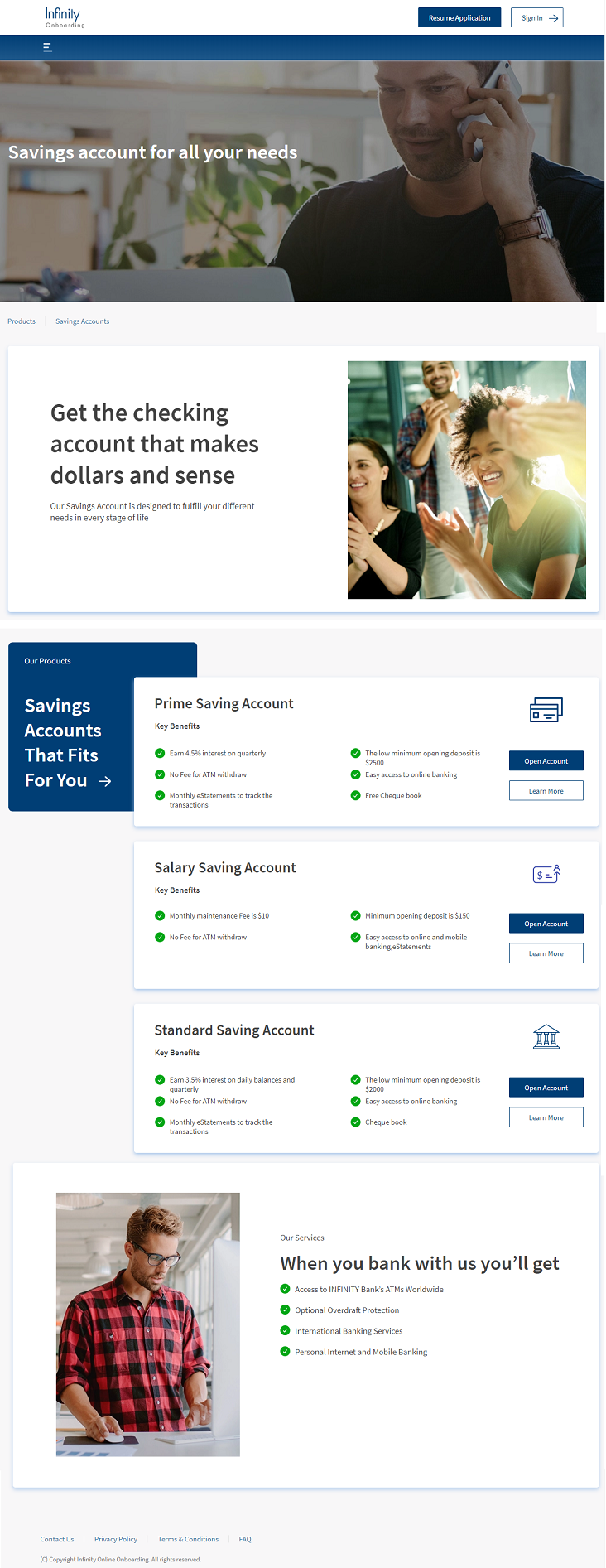
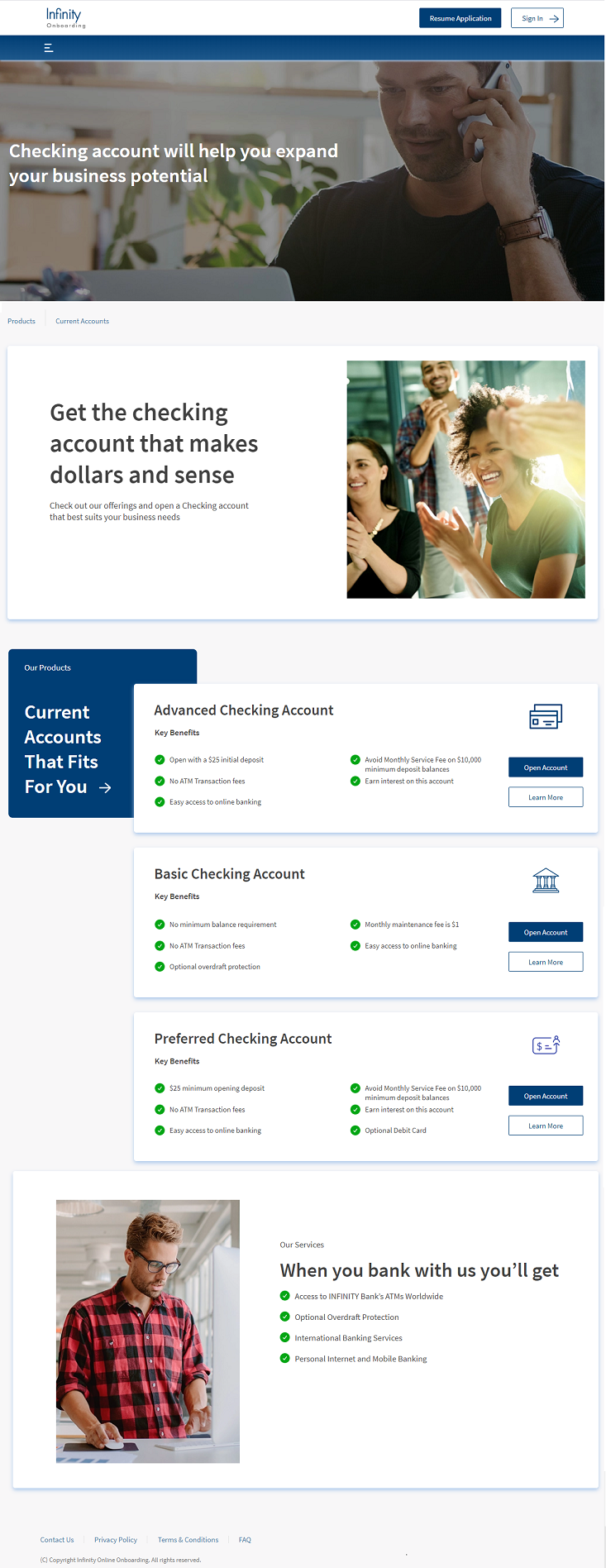
In another example, the Current Accounts' product group contains the following products:
- Basic Checking Account
- Advanced Checking Account
- Preferred Checking Account
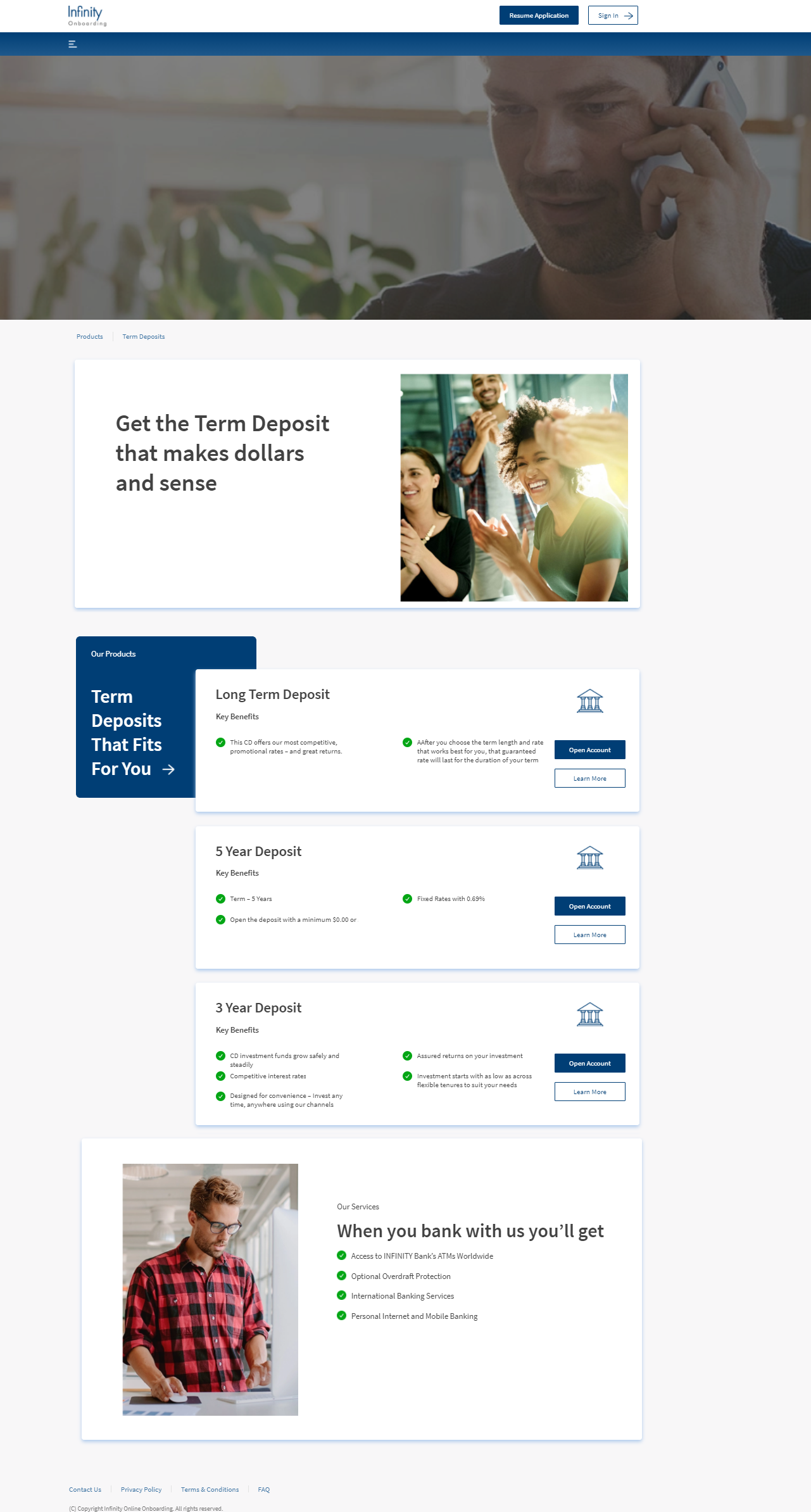
Similarly, the Term Deposits product group contains the following products in this example:
- Long Term Deposit
- 3 Year Deposit
- 5 Year Deposit
Each product displays its key benefits and provides the following options:
- Open Account enables you to open a new account for the desired product.
- Learn More provides more information about the product. On click of Learn More, the respective product details dashboard appears.
Product Details Dashboard
The Product Details Dashboard contains the details of the selected product.
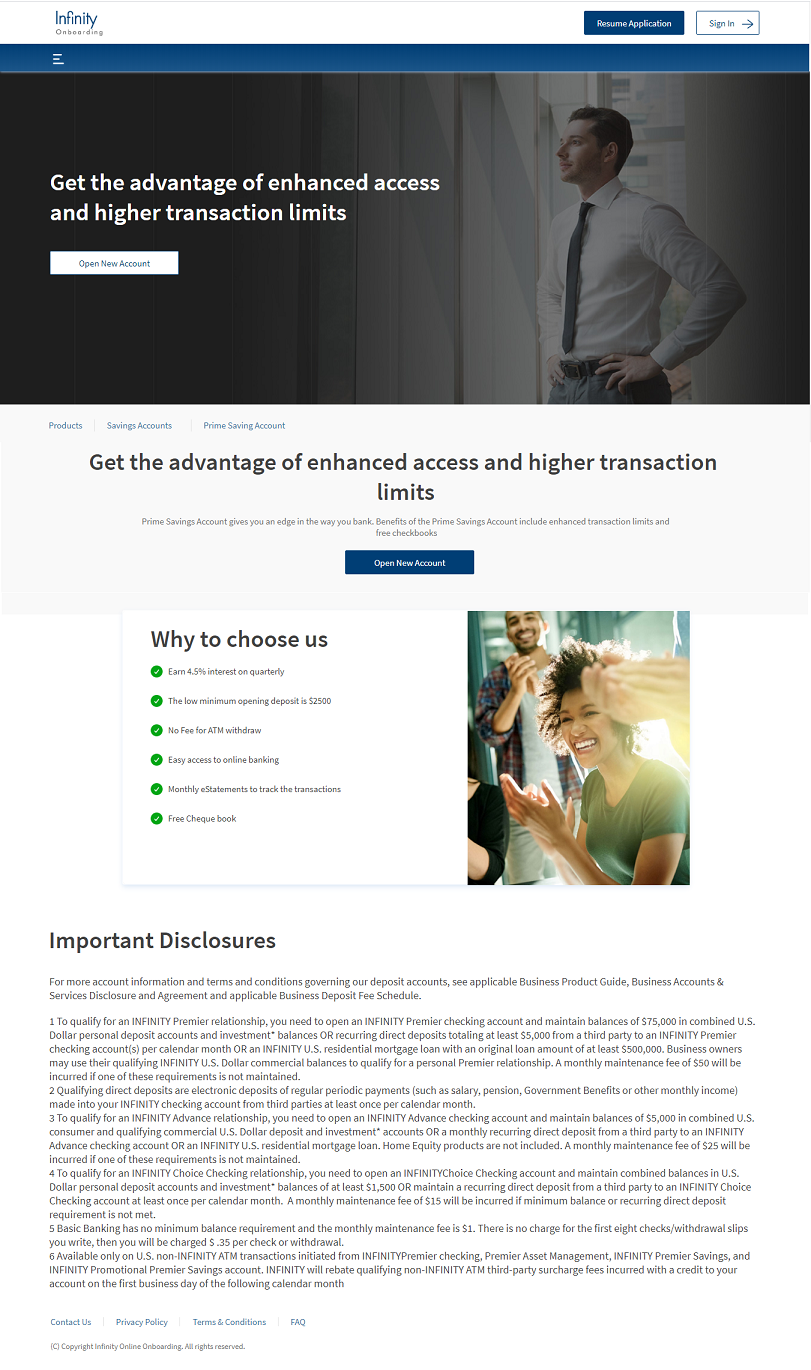
The Product Details Dashboard provides you the reasons for choosing the product. If you want to open a new account for the selected product, click Open New Account. For more information about account opening, refer to Start a New Application.
Apart from the mentioned details, the dashboards also provide the following options:
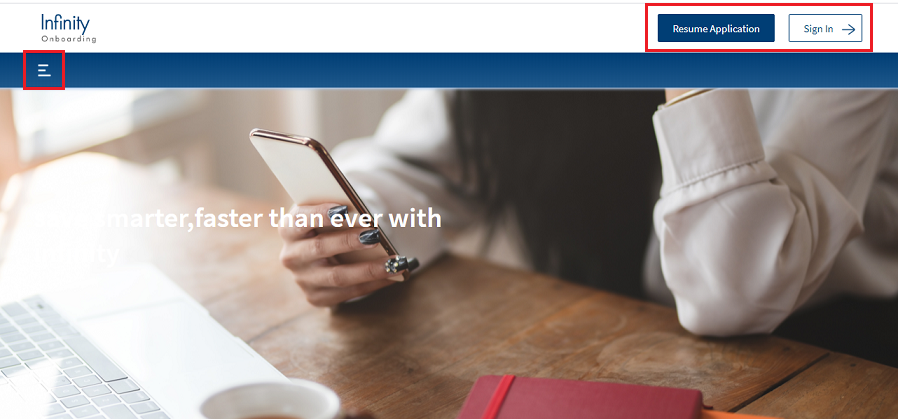
- The Resume Application option on the upper-right corner of the dashboard enables you to resume an application from the page that you last visited. For more information about the resume flow, refer to Resume Application flow.
- The Sign In option on the upper-right corner of the dashboard leads you to the Login page. If you are an existing customer, you can sign in by using your credentials. After you sign in, the Landing Dashboard opens with the list of available products.
To log out of the app, click Sign Out.
- The Hamburger Menu enables you to navigate to the Product Group Dashboard by selecting the required product group. You can navigate back to the Initial Dashboard by selecting Home from the menu.
Limitations
If the product details do not appear either on the Product Group Dashboard or Product Details Dashboard, refresh the page. It is due to the working nature of the Marketing Catalog Microservice (MCMS). MCMS runs in a non-production environment and could contain availability or performance issues.
Experience APIs
| API | Description |
|---|---|
| getProductGroupsWithPurpose | This API fetches the list of product groups. These product groups are displayed as cards on the landing page and the hamburger menu. |
| getProductsFromProductGroup | This API fetches the list of products under a product group. The list is displayed on the Product Group dashboard. |
| getProductDetails | This API fetches the details of the product selected, when the Learn More onClick action is triggered on the Product Group dashboard. The API populates the response on the Product Details dashboard. |
| signoutOnboardingApplication | This API captures audit logs at the time of logout and idle time out. |
| updateLastEditedSection | This API updates the last edited section in the Onboarding application. |
Configurations
The system administrator will have the capability to enable or disable the App Landing Page section, and in case of turning it on, configure the dashboards from the Spotlight app. For more information about configuring the App Landing Page, click here.
Extensibility
By using the Extensibility feature, you can customize the modules based on your requirements. For more information, refer to Extensibility.
Detect Unsupported Browsers
Here is the list of the certified browsers that are supported by the Infinity Onboarding app.
| Browser | Certified Versions |
|---|---|
| Google Chrome | 68 and later |
| Apple Safari | 9.1.2 and later |
Apart from the browsers mentioned earlier, Microsoft Edge (version 44 and later) and Mozilla Firefox (version 66 and later) are also supported by the app with potential limitations. Thus, the Upgrade Browser window appears when you open the app in these browsers.
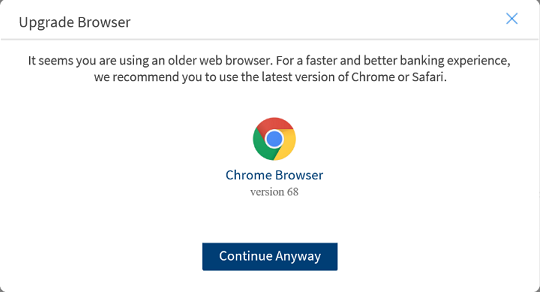
To proceed with creating the application, click Continue Anyway.
If you use an unsupported browser such as Internet Explorer 11, to access the Infinity Onboarding app, you will see an error message.
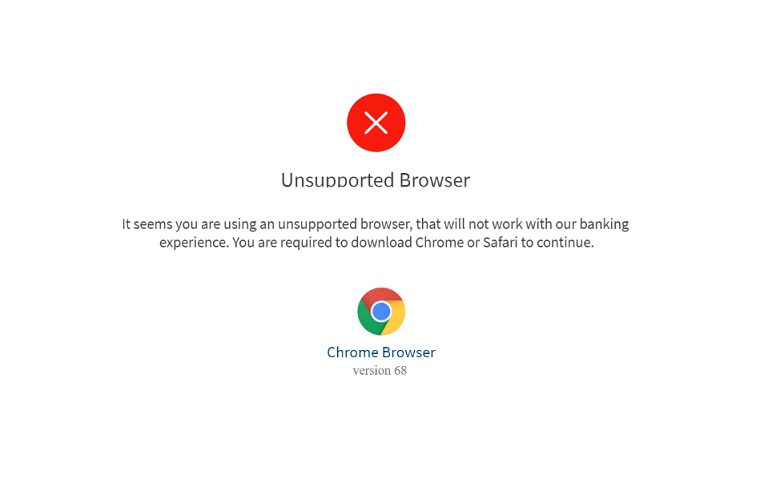
NOTE: The validation of browsers is applicable only to Desktop and is not applicable to Mobile and Tablet devices.
Add Bookmark
save your best linksView Bookmarks
Visit your best links BACK
BACK


Are you sure you want to log-off?